How to support different domain names in SSL behind reverse-proxy in IIS ARR

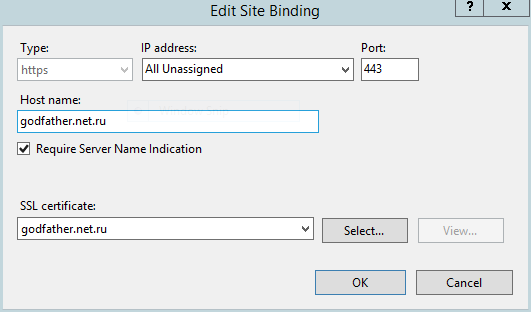
When you don’t want to enable SSL offloading so both internet facing web site and the one behind reverse proxy are access over SSL you will receive domain name mismatch.

The solution is simple. Either:

  • enable SSL Offloading
  • enable Require Server Name Indication in bindings settings:

image

Posted in Infrastructure | Tagged , | Leave a comment

Troubleshooting site-to-site connection in Azure: error 797, 663.

When I created a site-to-site connection in Azure Networks (classic) and tried to connect to the gateway from my on-premise VPN server running on virtual Windows Server 2012 R2 for the first time I found the following error in Application Event Log:

CoId={guid}: The user SYSTEM dialed a connection named {name} which has failed. The error code returned on failure is 797.

Solution: in RRAS -> Ports -> Properties: WAN Winiport (IKEv2) make sure you have at least 1 port enabled.

Next error I got was:

CoId={guid}: The user SYSTEM dialed a connection named {name} which has failed. The error code returned on failure is 663.

Solution: in the same settings make sure you have Demand-dial routing connection (inbound and outbound) enabled.

Happy routing!

Posted in Infrastructure | Tagged , | Leave a comment

Windows Store apps minimize to taskbar immediately after lunch

I don’t use Windows Store apps often, actually I don’t use them at all. I just like when the default MSN Weather compactly is present in the Start menu and shows current location’s temperature. Just for fun.

But recently I ran into a frustrating issue when all Store Apps (including the Store itself) constantly minimize to taskbar immediately after the launch.

What I’ve tried and it didn’t help:

  • Explicitly turn off the GPO which disallows Windows Store apps
  • sfc /scannow
  • Grant Read permissions to ALL APPLICATION PACKAGES on HKEY_CLASSES_ROOT
  • Run powershell -ExecutionPolicy Unrestricted Add-AppxPackage -DisableDevelopmentMode -Register $Env:SystemRoot\WinStore\AppManifest.xml
  • or ((Get-ChildItem "HKLM:SOFTWAREMicrosoftWindowsCurrentVersionAppxAppxAllUserStoreInboxApplications") | Get-ItemProperty).Path | Add-AppxPackage - Register -DisableDevelopmentMode
  • Copy from another user’s %LocalAppData%Packages

What actually helped:

  • wsreset from elevated console
  • Reinstall the app
Posted in Uncategorized | Tagged | Leave a comment

Detect whether or not an application is installed on the remote server

When you manage a windows server in core mode you can’t just open Control Panel -> Programs and Features to see whether or not particular application is installed.

Here’s the command for it:

wmic /node:server product where "Name LIKE '%name%'" get name,version

To uninstall it:

wmic /node:server product where "Name LIKE '%name%'" uninstall

Nkre: the later might not always work, probably depends on how its uninstaller was written.

Posted in Infrastructure | Tagged | Leave a comment

How to install PowerShell using PowerShell

This cmdlet is tricky to find in Google because searching for install powershell using powershell won’t give you much. So here it is:

Install-WindowsFeature PowerShell

or

Install-WindowsFeature PowerShell-V2

P.S. How to find exact name of particual Windows Feature to install?

Get-WindowsFeature | findstr PowerShell
Posted in Infrastructure | Tagged | Leave a comment

Replacing the for loop with Seq.iter

Here’s the initial function in C#:

public string BuildQuery(IEnumerable<KeyValuePair<string, string>> args)
{
    var coll = HttpUtility.ParseQueryString(String.Empty, _urlEncoder);
    foreach (var arg in args)
    {
        coll.Add(arg.Key, arg.Value);
    }
    return coll.ToString();
}

First I rewrote it in F# the following pretty naΓ―ve way, and forgot about it for a while:

member this.BuildQuery(args : IEnumerable<KeyValuePair<string, string>>) : string =
    let coll = HttpUtility.ParseQueryString(String.Empty, urlEncoder)
    for arg in args do
        coll.Add(arg.Key, arg.Value)
    coll.ToString()

But today I recurred to it and rewrote in a better way:

member this.BuildQuery(args : IEnumerable<KeyValuePair<string, string>>) : string =
    let coll = HttpUtility.ParseQueryString(String.Empty, urlEncoder)
    args |> Seq.iter (fun arg -> coll.Add(arg.Key, arg.Value))
    coll.ToString()
Posted in Programming | Tagged | Leave a comment

How to make Beyond Compare the default diff and merge tool in Git

Here’s a brief summary of the official documentation:

git config --global diff.tool bc3
git config --global difftool.bc3.path "c:/program files/beyond compare/bcomp.exe"
git config --global merge.tool bc3
git config --global mergetool.bc3.path "c:/program files/beyond compare/bcomp.exe"

Don’t ask me why BC4 has the shortcut called BC3 still. Go figure. And happy merging! πŸ™‚

Posted in Programming | Tagged | Leave a comment

Certificate enrollment policy server URI format

If you’re trying to request a certificate from a non-domain joined computer using Certificates console (CertMgr.msc or CertLM.msc) then you need to install on the server that hosts your Certificate Authority the following components:

(maybe you need just one of them but I’ve installed both)

and then enter its URI in the following format:

https://dc.example.local/ADPolicyProvider_CEP_Kerberos/service.svc/CEP

That’s it, folks!

Posted in Infrastructure | Tagged , | 2 Comments

How to configure RDG behind NAT

This week’s problem was to make working Remote Desktop Gateway located behind a NAT. Here’s the lessons learned:

  • Issue an SSL certificate with the subject matching public DNS name (FQDN)
  • Use the default port 3389/TCP, otherwise SSL certificate’s name won’t match FQDN returning an error:

    The computer can’t verify the identity of the RD Gateway.

    or if you put it to current user’s Trusted Root Certification Authorities:

    Your computer can’t connect to the computer because the Remote Desktop Gateway server address requested and the certificate name do not match.

  • Publish on the firewall, i.e. make available from outside, HTTPS port 443/TCP. Otherwise connection won’t be established returning another meaningless error:

    Your computer can’t connect to the remote computer because the RDG server is temporarily unavailable.

That’s all, folks!

Posted in Infrastructure | Tagged , | 5 Comments

How to start using recently uploaded Azure disk

After you uploaded a vhd and before you can start really using it you must mark it as a data disk or as an OS disk using the following command:

Add-AzureDisk -DiskName 'myvhd.vhd' -MediaLocation http://example.blob.core.windows.net/container/myvhd.vhd -OS Windows

Posted in Infrastructure | Tagged , | Leave a comment